Blocking & Filtering
Ferrous DNS provides multi-layer DNS filtering with support for blocklists, wildcards, regex, CNAME cloaking detection, and safe search enforcement.
How Blocking Works
Rules you wrote yourself are resolved first and win outright. Everything else — the global blocking toggle, schedule overrides, downloaded blocklists — is only consulted once no manual rule matches:
Query: ads.doubleclick.net
         │
         ▼
  1. Manual rules ──────► allowlist, managed domain, regex filter,
         │                or manually added blocked domain?
         │                ├─ allow → ALLOW, final
         │                └─ deny  → BLOCK, final
         │ no manual rule
         ▼
  2. Blocking toggle ───► blocking paused? → ALLOW
         │ blocking on
         ▼
  3. Schedule override ─► group in a BlockAll / AllowAll window? → apply it
         │ no override
         ▼
  4. Quick pre-check ───► definitely not blocked? → skip lookup
         │ possible match
         ▼
  5. Exact domain match ─► in a downloaded blocklist? → BLOCK
         │ no
         ▼
  6. Wildcard match ────► matches *.ads.com? → BLOCK
         │ no
         ▼
  7. Substring / adblock rule ─► matches? → BLOCK
         │ no
         ▼
  8. Upstream resolution
         │
         ▼
  9. CNAME cloaking ────► CNAME points to blocked domain? → BLOCK
         │ clean
         ▼
     Return response
A domain allowed at step 1 also skips the five malware detection engines, which otherwise run around steps 4 and 8.
Blocklists
Adding Blocklists
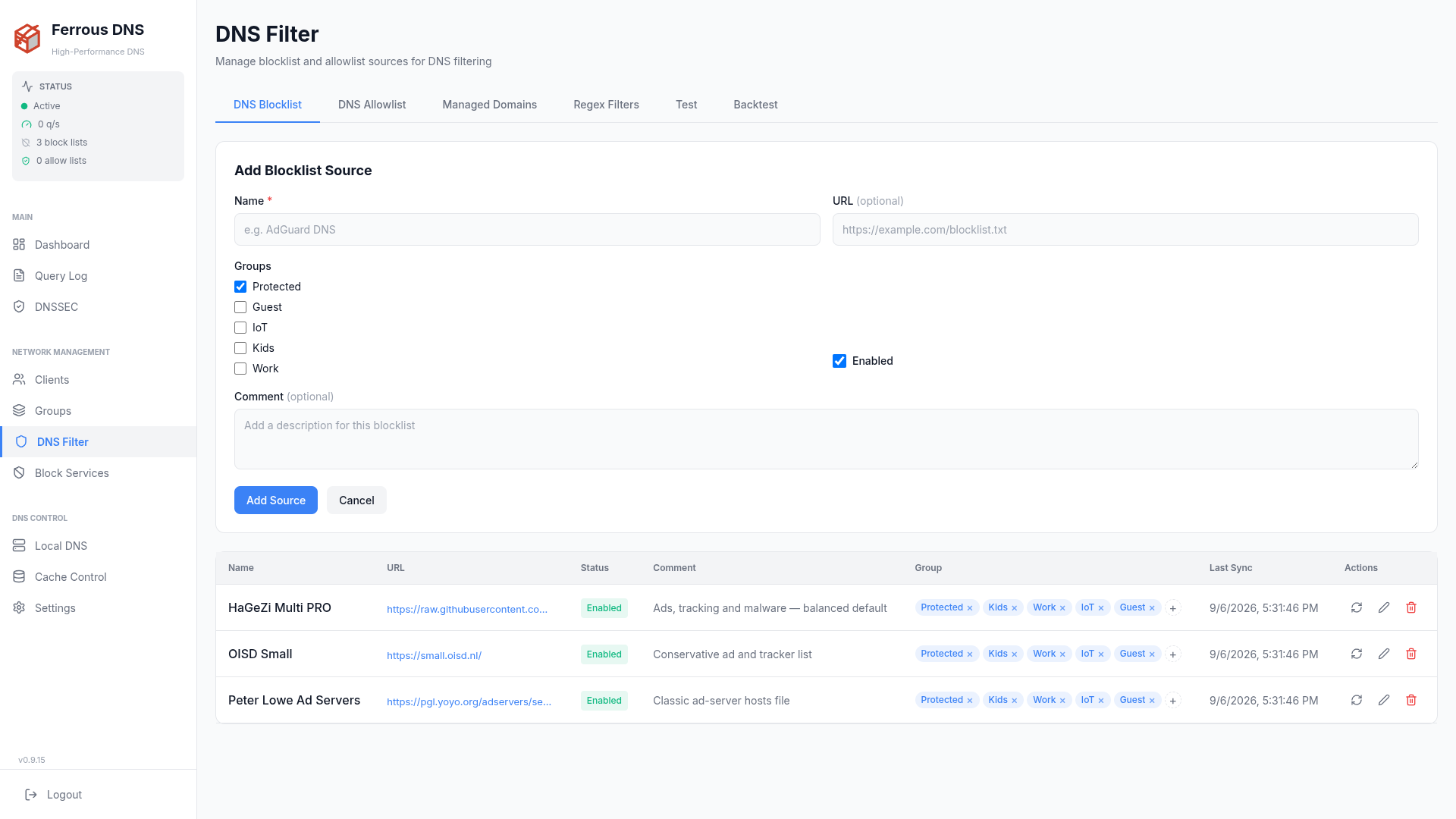
Via dashboard: Blocklists > Add Blocklist (or the REST API).
Not configured via TOML
Individual blocked domains are stored in the SQLite database and managed through the dashboard or REST API. The custom_blocked array in the [blocking] TOML section is not read by the DNS query pipeline and has no effect — use the dashboard or API instead.
63 active blocklist sources maximum
Each domain carries a 64-bit mask of the sources that contributed it, and one bit is reserved for manually added entries. If more than 63 blocklist sources are enabled, only the 63 oldest are compiled and the rest are silently skipped — the only signal is a WARN line at startup and after each refresh. Merge or disable lists to stay under the cap; a handful of large lists beats dozens of small ones.
Supported Formats
Hosts file (0.0.0.0 or 127.0.0.1 format):
Domain list (one domain per line):
Wildcard (blocks entire subdomain trees):
A *. rule covers every name below the base — video.ads.example.com, a.b.ads.example.com — but not the base itself. Add ads.example.com as its own line to block the apex too.
Adblock (domain and everything under it):
||doubleclick.net^ blocks doubleclick.net and all of its subdomains. @@ exception lines are ignored.
Substring (literal text anywhere in the name):
/.../ in a list is a literal substring, not a regex
Text between slashes is matched literally, so /^ads\d+\.example\.com$/ looks for a name containing the characters ^ads\d+… and matches nothing. For real regular expressions use Regex Filters in the dashboard, which compile per client group with an allow or deny action.
Recommended Blocklists
| Name | URL | Size | Focus |
|---|---|---|---|
| Steven Black Unified | https://raw.githubusercontent.com/StevenBlack/hosts/master/hosts | ~120k | Ads + Malware |
| OISD (small) | https://small.oisd.nl/domainswild | ~50k | Balanced |
| OISD (big) | https://big.oisd.nl/domainswild | ~200k | Comprehensive |
| HaGeZi Pro | https://raw.githubusercontent.com/hagezi/dns-blocklists/main/wildcard/pro.txt | ~225k | Comprehensive |
| HaGeZi Threat | https://raw.githubusercontent.com/hagezi/dns-blocklists/main/wildcard/tif.txt | ~2.1M | Security |
| EasyList | https://easylist.to/easylist/easylist.txt | ~80k | Ads |
Allowlist
Domains in the allowlist bypass all blocking, even if present in a blocklist.
Manage the allowlist via the dashboard (DNS Filter > Managed Domains) or the REST API — entries are stored in the SQLite database. You can also add a domain directly from the query log with one click.
Not configured via TOML
The whitelist array in the [blocking] TOML section is not read by the DNS query pipeline and has no effect. Use the dashboard or API to allow-list domains.
What counts as a manual rule
Four sources are treated as rules you wrote by hand, and all four sit in the top tier:
| Source | Where | Allow | Deny |
|---|---|---|---|
| Allowlist | DNS Filter > Managed Domains, or one click from the query log |  | — |
| Managed domains | DNS Filter > Managed Domains | | |
| Regex filters | DNS Filter > Regex Filters | | |
| Manually blocked domains | one click from the query log | — | |
Domains that arrived from a downloaded blocklist source are not manual, and stay subject to the toggle and to schedules.
What a manual rule outranks
| A manual rule beats | Meaning |
|---|---|
| The global blocking toggle | Pausing blocking (POST /api/dns/blocking, or the Pi-hole toggle) releases downloaded blocklists but not a domain you denied by hand |
| Schedule overrides | A BlockAll window does not override an allow; an AllowAll window or bypass timer does not release a manual deny |
| Blockable services | A service blocked for the group is overridden by an explicit allow for one of its domains |
| Malware detection | All five detection engines skip an explicitly allowed domain — see below |
Clearing a false positive
If a domain you need is being blocked by DNS tunneling, DGA, rebinding, NXDomain hijack or response IP filtering, add it as an allow in Managed Domains, or click Allow next to it in the query log. It takes effect on the next query — no restart, no TOML edit. See Malware Detection.
CNAME Cloaking Detection
Some trackers hide behind first-party CNAME records to bypass simple domain blocklists:
Without CNAME inspection, blocking tracking.third-party-analytics.com would be ineffective because the query is for tracking.yoursite.com.
Ferrous DNS resolves the full CNAME chain and blocks the response if any CNAME in the chain points to a blocked domain. This is enabled automatically when blocking is active.
Safe Search Enforcement
Force safe search modes on search engines and video platforms to prevent explicit content:
Managed via dashboard: Settings > Safe Search
| Platform | Enforcement Method |
|---|---|
DNS redirect to forcesafesearch.google.com | |
| Bing | DNS redirect to strict.bing.com |
| YouTube | DNS redirect to the moderate or strict restriction endpoint (selectable per group) |
| DuckDuckGo | DNS redirect to safe search endpoint |
| Yandex | DNS redirect to the family search endpoint |
| Brave | DNS redirect to safe search endpoint |
| Ecosia | DNS redirect to safe search endpoint |
Safe Search can be enabled globally or per client group (e.g. only on the "Kids" group).
Blockable Services (1-Click)
Pre-defined service categories that can be blocked network-wide or per group:
Advertising - Google Ads, DoubleClick, Facebook Ads, Amazon Ads
Analytics & Tracking - Google Analytics, Mixpanel, Hotjar, Segment, Amplitude
Social Media - Facebook/Instagram, TikTok, Twitter/X, Snapchat, Pinterest
Telemetry - Microsoft telemetry, Apple telemetry, Windows Update telemetry
Adult Content - Adult content domains
Gambling - Online gambling domains
Access via dashboard: Services
See Block Services & Schedules for the full guide with per-group examples, custom services, and time-based scheduling.
Per-Group Blocking
Different blocking policies per client group allow fine-grained control:
- Kids devices: strict blocklist + safe search + social media blocked
- Work devices: ad blocking + tracking blocked, social media allowed
- IoT devices: block everything except required cloud endpoints
- Guest network: basic ad blocking only
See Client Management for group setup.
Query Log Actions
Every query in the query log has quick-action buttons:
- Block: adds the domain to the global blocklist
- Allow: adds the domain to the allowlist
Changes take effect immediately without a restart.
Blocking Response
How a blocked query is answered is controlled by the block_mode setting (dashboard: Settings > DNS > Blocked query response, or the [blocking] config section). The default is Null IP, which returns a cacheable 0.0.0.0/:: answer so clients fail fast and stop re-querying.
| Mode | Response |
|---|---|
null_ip (default) | NOERROR + 0.0.0.0 (A) / :: (AAAA); NODATA for other types |
nxdomain | NXDOMAIN (domain appears not to exist) |
nodata | NOERROR with an empty answer |
refused | REFUSED (legacy, non-cacheable) |
Negative responses include a synthetic SOA so resolvers can negatively cache the block for block_ttl seconds. See Block Response Mode for the full reference and the restart caveat.